How to Fix a Blurry Mini Projector Image 2026 – Complete Guide
A blurry projector image is frustrating, but it is rarely a reason to replace the projector.
In most cases, the cause is a setup problem: focus that was never quite set, a projector sitting at the wrong distance, or keystone correction quietly softening the picture. This guide walks through how to fix a blurry mini projector image in the order that finds the fault fastest.
Diagnose before you adjust: a projector focus problem can look identical whether the cause is a dirty lens, a low-quality stream, or a projector angled too sharply at the wall. Change one setting at a time, so you fix the real cause instead of turning the focus dial for twenty minutes and getting nowhere.
Diagnose First: How to Fix a Blurry Mini Projector Image in 5 Minutes
Run this quick diagnosis in order. It takes about five minutes and points straight at the cause.
Step 1 — Focus
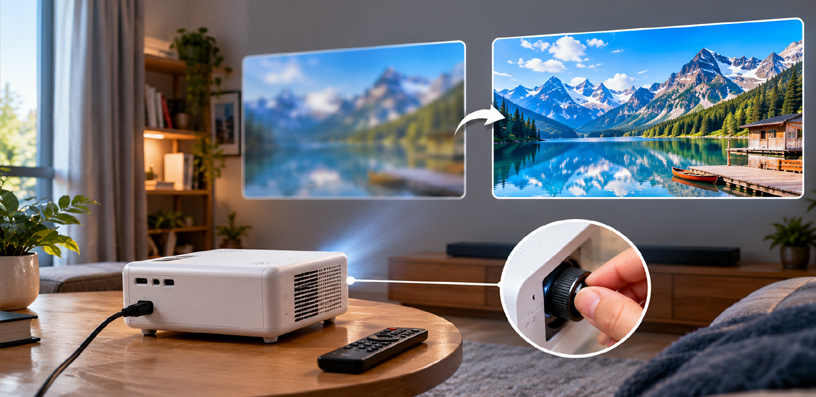
Put sharp text on screen, such as a settings menu, and adjust focus slowly until the letters look sharpest. If the whole picture sharpens, you are done; if only the centre sharpens, the problem is alignment or keystone, not focus.
Step 2 — Distance
Check whether the projector sits inside its recommended throw range for the picture size. Too close or too far, and no focus adjustment will produce a sharp image.
Step 3 — Keystone
Look at the keystone value in the menu. If it is high, that is a strong suspect, especially for one-sided or edge blur. Reset it to zero and square the projector up physically instead.
Step 4 — Source
Switch to a different source or video. If a high-quality file looks sharp but a stream looks soft, the projector was never the problem.
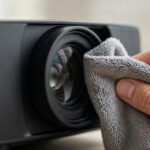
Step 5 — Lens
Look at the lens in good light. Fingerprints, dust, or condensation scatter light and soften the picture — if it looks dirty, clean it as described below.
Fix 1: Set the Focus Properly
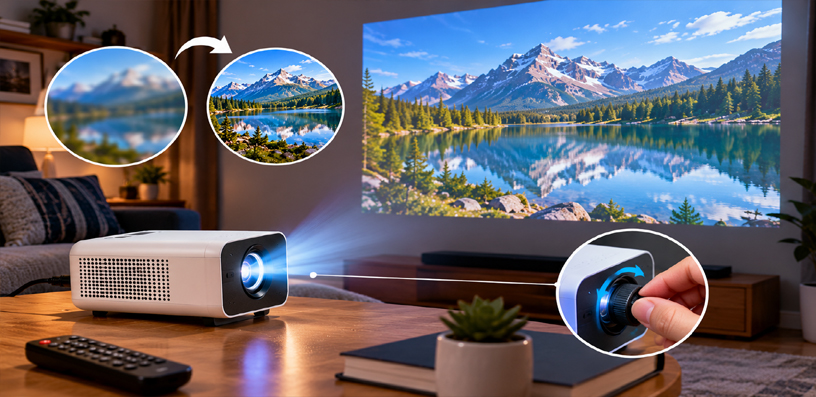
Focus is the most common cause of a projector image not being sharp, and also the easiest to get wrong. Many people adjust focus while a film is playing, but moving pictures hide fine detail. Always focus on still, high-contrast content: a settings menu, a page of text, or a test pattern with fine lines.
If your projector has autofocus, let it run first, then check the result on text. Autofocus can settle on the wrong point, especially in a dim room or on a patterned wall. If it misses, switch to manual focus and turn the focus ring slowly, going slightly past the sharpest point in both directions.
The true peak is where text edges look crispest; many people stop too early at “mostly sharp” and live with a slightly soft picture.
Let the projector warm up for a few minutes before judging focus — heat shifts lens elements slightly, so a picture focused cold can drift. Also avoid heavy digital zoom, which throws away detail and softens everything.
Fix 2: Get the Distance Right
Every projector has a throw range: a minimum and maximum distance from the screen for a given picture size. Outside that range, the lens simply cannot bring the whole image into focus, and the picture stays soft no matter what you do with the focus control.
Check your manual for the recommended distance, then move the projector inside that range, starting near the middle rather than at either extreme.
If space is tight, make the picture smaller instead of pushing the projector past its design limits. Uniform softness points to distance and focus; one-sided softness points to angle and keystone.
Fix 3: Straighten the Projector and Ease Off Keystone
Projector keystone blur is the most misunderstood cause of a soft picture. When a projector sits at an angle, the image becomes a trapezoid, and keystone correction fixes the shape digitally by resampling the image — squeezing pixels together on one side. The more correction applied, the softer the picture gets, especially at the edges.
The real fix is physical, not digital. Place the projector square to the wall, level, and centred, using the feet or a small stand for height rather than tilting it up and correcting heavily. Then reset keystone to zero and refocus. If turning keystone off removes the edge blur, digital correction was the cause.
One-sided blur is the classic symptom: left sharp and right soft, or a crisp centre with smeared corners, almost always means the projector is angled to the wall. Square it up first, use only a small amount of keystone for what remains, and prefer lens shift if your projector has it — it moves the image optically at far less sharpness cost.
Fix 4: Match the Source Resolution and Check the Cable
Sometimes the projector is fine, and the picture it is fed is not: it can only show the detail it receives. If the source sends less than the projector’s native resolution, or a heavily compressed stream, the picture stays soft no matter how perfect the setup is.
Set the source device to output the projector’s native resolution: on a laptop, match the display output in the display settings; on a streaming stick, check the video quality setting is not capped at a low level.
If the source is a phone, a clean wired or casting connection beats a weak wireless one for detail — our guide to connecting a phone to a projector covers the reliable options.
Cables cause blur too: a damaged or very long HDMI cable can drop signal quality. Swap in a different, shorter cable and try another port, or test with a completely different source device — if a second device looks sharp, the first device or its cable is at fault.
And judge sharpness on good content: a low-bitrate stream will always look softer than a high-quality file.
Fix 5: Clean the Lens Properly
A dirty lens is an overlooked cause of blur: dust, fingerprints, and condensation scatter light, reading as general softness or haze rather than a focus problem.
Clean it the right way. Switch the projector off, unplug it, and let it cool completely. Then wipe the lens gently with a microfiber cloth or lens tissue, working from the centre outward in slow circles. For stubborn marks, use a small amount of lens cleaning solution on the cloth, never directly on the lens.
Never use paper towels, tissues, or household cleaners — they can scratch the coating or leave residue that makes things worse.
Watch out for condensation: bringing a cold projector into a warm room can fog the lens. Let it reach room temperature before switching on, and the fog clears on its own. Keep the lens cap on when idle and wipe the lens before each movie night.
Fix 6: Fix the Screen and the Room Light
The surface matters more than people expect: a wrinkled sheet or textured wall scatters light and breaks up fine detail. Stretch the screen flat, or use the smoothest, lightest wall you have.
Room light is the other half of this fix. A bright room washes out contrast so badly that the picture looks soft — dark details disappear, and fine edges vanish.
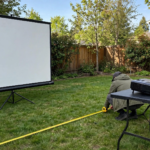
Dim the lights, close the curtains, and judge again: if the picture sharpens in a dark room, the room was the problem, not the projector. This matters outdoors too, where daylight is the main enemy of sharpness — and where power and placement need planning, as covered in our guide to powering a projector outdoors without an outlet.
A small Sharpness bump can help, but keep it modest: heavy sharpening adds halos and makes things worse.
When Blur Means A Faulty Projector
Most blur is setup, but not all of it. Suspect a faulty unit when the picture stays soft after every fix above — focus on text after warm-up, square placement inside the throw range, keystone at zero, clean lens, high-quality source on a good cable — or soft in the same place every time.
Warning signs pointing to hardware include a wobbling focus ring, haze inside the lens that cleaning cannot reach, blur worsening steadily over weeks, and a projector that was dropped or knocked. Before concluding the unit is faulty, try a factory reset and a firmware update from the manufacturer’s website.
If neither helps and blur persists across sources, surfaces, and placements, contact the manufacturer or seller under warranty, describing the checks you have already run.
Keep It Sharp: A Simple Maintenance Routine
Once the picture is sharp, a short routine keeps it that way: cap the lens when idle, wipe it before movie nights, and keep the projector in one marked spot so distance and alignment never drift.
Clean the air vents and filter if your model has one — blocked airflow causes overheating, which can shift focus during long sessions. After any move, run the five-minute diagnosis again.
Frequently Asked Questions
Why is my projector blurry on one side only?
One-sided blur is almost always an angle problem: the projector is not square to the wall, so one side sits further from the lens, and heavy keystone correction softens that side further. Square the projector up, reset keystone to zero, and refocus.
Why is my projector still blurry after I adjust the focus?
Because focus was probably not the cause. Check distance next — outside its throw range, focus cannot fix it — then keystone, source quality, and the lens.
Why does my projector go blurry after a while?
Heat is the usual reason: lens elements shift slightly as the projector warms up, so a picture focused cold can drift. Focus after a few minutes of warm-up, and check for lens dust and blocked vents if blur worsens over weeks.
Can a dirty lens make a projector blurry?
Yes. Dust, fingerprints, and condensation scatter light and create a general haze. Clean the cooled lens with a microfiber cloth, centre outward, and keep the cap on when idle.
Does keystone correction make the picture blurry?
Yes — digital keystone resamples pixels to fix the shape, and the softening grows with the amount of correction. Square the picture physically first and keep keystone near zero.
Why is my projector blurry in a bright room?
Bright room light washes out contrast, so fine detail disappears, and the picture looks soft even though focus is correct. Dim the lights and judge again — if it sharpens, the room was the problem.
Can the wrong resolution make a projector look blurry?
Yes. If the source sends less than the projector’s native resolution, or a heavily compressed stream, there is less detail to show. Match the source output to the native resolution and test with high-quality content first.
How do I know if my projector is faulty or just set up wrong?
If the picture stays soft after correct focus, square placement inside the throw range, keystone at zero, a clean lens, and a high-quality source on a good cable, the unit is suspect. A wobbling focus ring or internal haze also points to hardware — try a factory reset and firmware update, then contact support.
Bottom Line
Fixing a blurry mini projector image comes down to working in order: focus on text after warm-up, check distance, square the projector up and ease off keystone, clean the lens, and verify the source.
Almost every blurry picture gives way to one of those steps; the few that do not are a screen, room-light, or hardware problem you can now identify.
Mark your projector’s spot once the picture is sharp, cap the lens when done, and refocus briefly after any move. A mini projector that lives in one place and gets a quick focus check before each use stays sharp for years.