How to Connect Your Phone to A Projector for A Backyard Movie
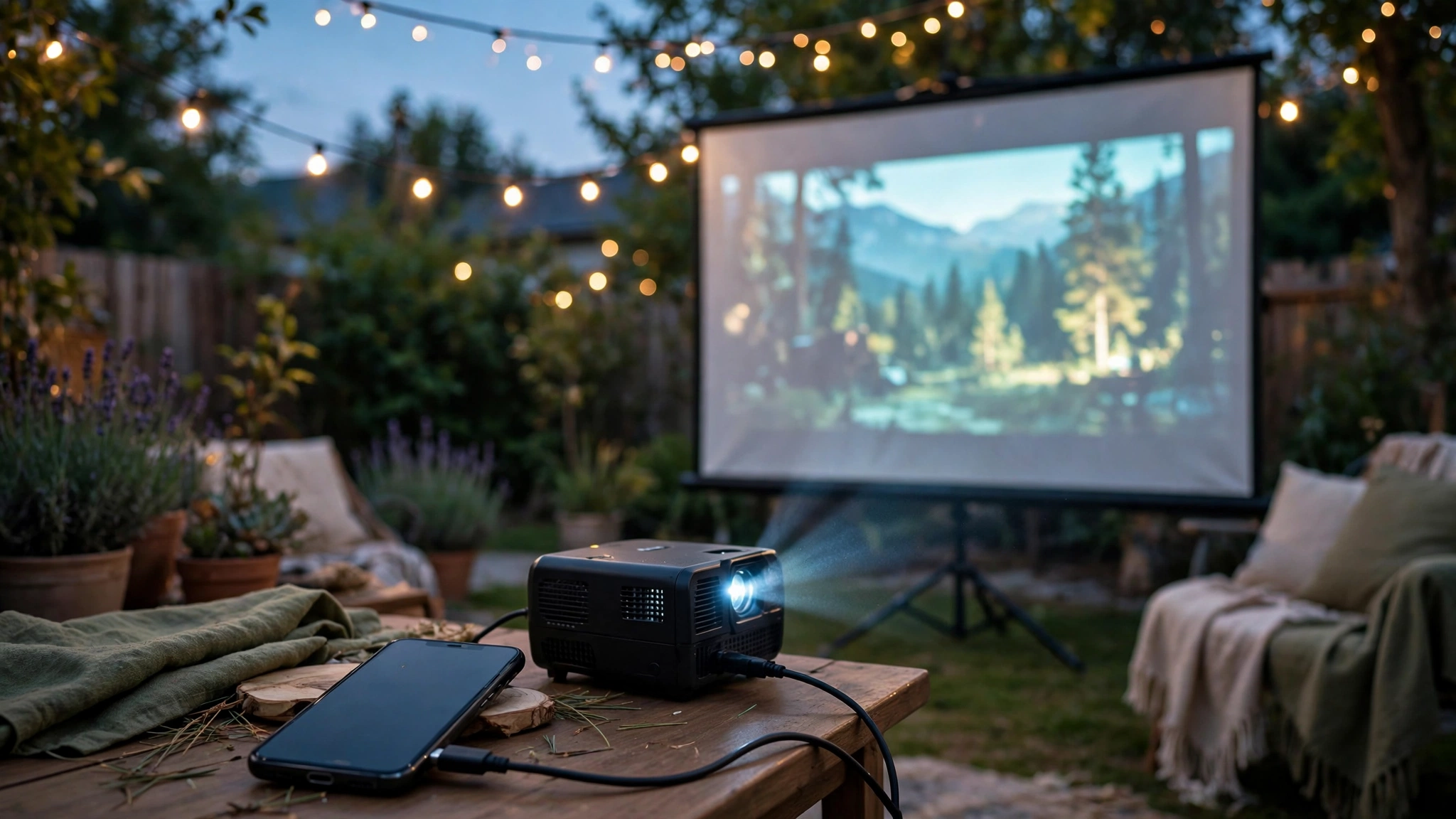
Want to run movie night straight from your phone? Learning how to connect your phone to a projector for a backyard movie is simpler than it looks, and you probably already own half of what you need. Whether you carry an iPhone or an Android, there is a wired option and a wireless option that will get the picture up on the screen in minutes.
The real decision comes down to this: do you want the rock-solid reliability of a cable, or the walk-around freedom of going wireless?
Both work great outdoors. Below I walk through every connection method that actually works in a backyard setting, including the Netflix black-screen problem that ruins more movie nights than bad weather, plus how to get the audio right.
Wired vs. Wireless: Pick Your Approach
Wired (HDMI adapter) is the set-it-and-forget-it choice: adapter into your phone, HDMI cable to the projector, zero lag, no Wi-Fi needed. The downside is you’re tethered to the projector, and your phone drains battery while pushing video out.
Wireless (casting or a streaming stick) frees you to control everything from your lawn chair, but it depends on your Wi-Fi reaching the backyard and can add slight audio delay.
For a first backyard movie night, wired is the safest bet. Pick your method before sunset and test it in daylight, and you’ll spend the evening watching the movie instead of troubleshooting it.
How to Connect Your Phone to a Projector for a Backyard Movie With a Cable
A cable connection is the most reliable way to mirror a phone to a projector. The exact adapter depends on your phone’s port.
iPhone: Lightning or USB-C to HDMI
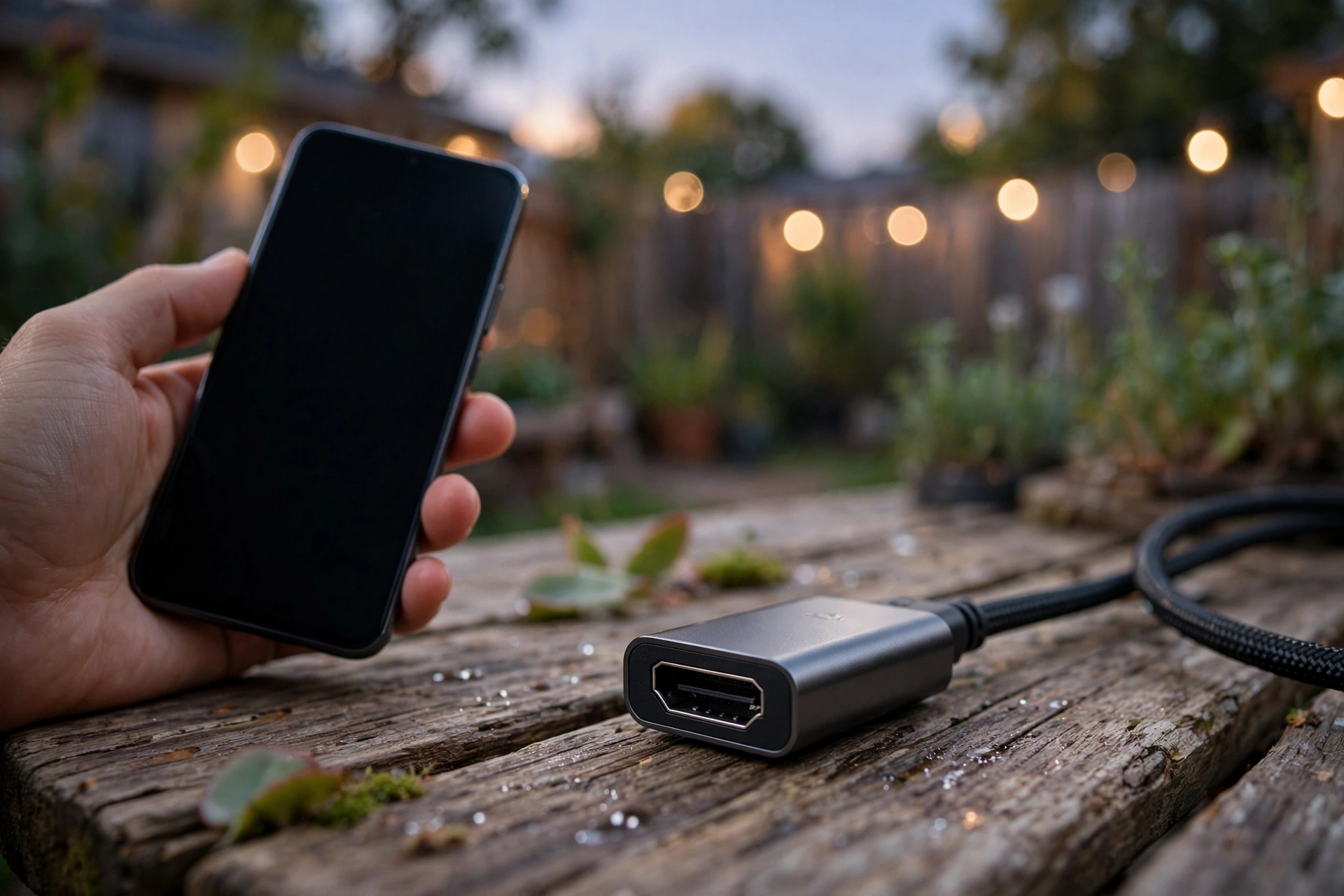
Older iPhones with a Lightning port need a Lightning to HDMI adapter (Apple’s official Digital AV Adapter is the benchmark). Plug it into your phone, connect a standard HDMI cable between the adapter and the projector’s HDMI input, and switch the projector to that input. Your screen mirrors almost instantly.
Newer iPhones with a USB-C port (iPhone 15 and later) can use a USB-C to HDMI adapter or cable. Since mirroring is battery-hungry, plug the adapter’s extra charging port into a power bank or a long charging cable — a two-hour movie will take a serious bite out of your battery otherwise.
One genuine advantage of Apple’s official adapter: it is fully HDCP-compliant, which matters for streaming apps. Cheap knockoff adapters are the number-one cause of the dreaded “audio but black screen” problem with Netflix — more on that below.
Android: USB-C to HDMI (Check for Video Output First)
Most modern Android phones with a USB-C port support video output over USB-C, but not all of them. The feature is called DisplayPort Alt Mode, and some budget phones leave it out.
Before buying an adapter, check your phone’s specs page or your manufacturer’s support site for “video output” or “DisplayPort Alt Mode” support. Flagship Samsung, Google Pixel (recent generations), and OnePlus phones generally support it.
If your phone supports it, a USB-C to HDMI adapter works exactly like the iPhone version: adapter into the phone, HDMI cable to the projector, select the HDMI input, and you’re mirroring. Get one with a pass-through charging port so you can keep the phone topped up during the movie.
If your phone lacks video output, skip to the wireless methods below — no software trick adds it to a port that doesn’t have it.
The Wired Setup Steps
Whichever phone and adapter you use, the process is the same:
- Connect the adapter to your phone, then plug an HDMI cable from the adapter to the projector’s HDMI input. Use a cable long enough to reach comfortably — six to ten feet gives you room to set the phone down somewhere safe.
- Power everything on and select the right HDMI input. If nothing appears, check that the adapter is seated firmly — USB-C adapters sometimes need a firm push.
- Turn your phone to landscape before starting the video. Most apps only fill the screen in landscape, and the projector mirrors whatever orientation the phone is in.
- Turn on Do Not Disturb. Nothing kills the mood like a text notification popping up over the climactic scene. Everyone forgets this exactly once.
If you’re still shopping for the projector itself, brightness matters more outdoors than any other spec — our guide to the best outdoor projectors breaks down how many lumens you need once the sun goes down.
Going Wireless: Streaming Sticks, AirPlay, and Miracast
Wireless methods trade a little reliability for a lot of convenience. Here are the ones that work outdoors.
Plug a Streaming Stick Into the Projector
This is my favorite method for regular backyard movie nights. Plug a Fire TV Stick, Google TV Streamer (the Chromecast successor), or Roku stick directly into the projector’s HDMI port and power it from the projector’s USB port or a small power bank. Then use your phone as the remote via the stick’s companion app.
Why this beats mirroring: the stick runs the Netflix, Disney+, and YouTube apps natively, so there are no HDCP handshake problems and no mirroring lag, and your phone stays free.
You can even start the movie from inside the house and walk out to a screen that’s already playing. Just make sure the stick can reach your Wi-Fi — if your backyard is a dead zone, this method will buffer endlessly. Test it before guests arrive.
AirPlay From iPhone to a Smart Projector
If your projector runs Android TV, Google TV, or has built-in AirPlay support (many newer portable models from brands like XGIMI do), you can AirPlay directly from your iPhone with no extra hardware.
Both devices need to be on the same Wi-Fi network: swipe into Control Center, tap Screen Mirroring, and pick the projector. The weak link outdoors is your Wi-Fi reaching the backyard — confirm your router covers the seating area before committing to this.
Miracast and Screen Mirroring From Android
Many Android phones can cast directly to projectors that support Miracast — Samsung calls it Smart View, other brands call it Cast or Wireless Display. Look for a “Screen Mirroring” input on the projector.
The phone and projector connect directly, so this can work even without internet. It’s convenient, but be honest about quality: Miracast compresses the image noticeably and can drop the connection. Fine for YouTube; for a movie you care about, a wired adapter or streaming stick looks better.
Use the Projector’s Built-In Smart OS
A growing number of portable projectors ship with built-in streaming apps — essentially a streaming stick baked in. Connect the projector to Wi-Fi, open the app, log in, and press play; your phone stays in your pocket all night.
The catch: built-in apps aren’t always updated as reliably as a dedicated stick, and some projectors ship without the one service you subscribe to. Verify your must-have apps are present before movie night, not during it.
The Netflix Black-Screen Gotcha (HDCP Explained)
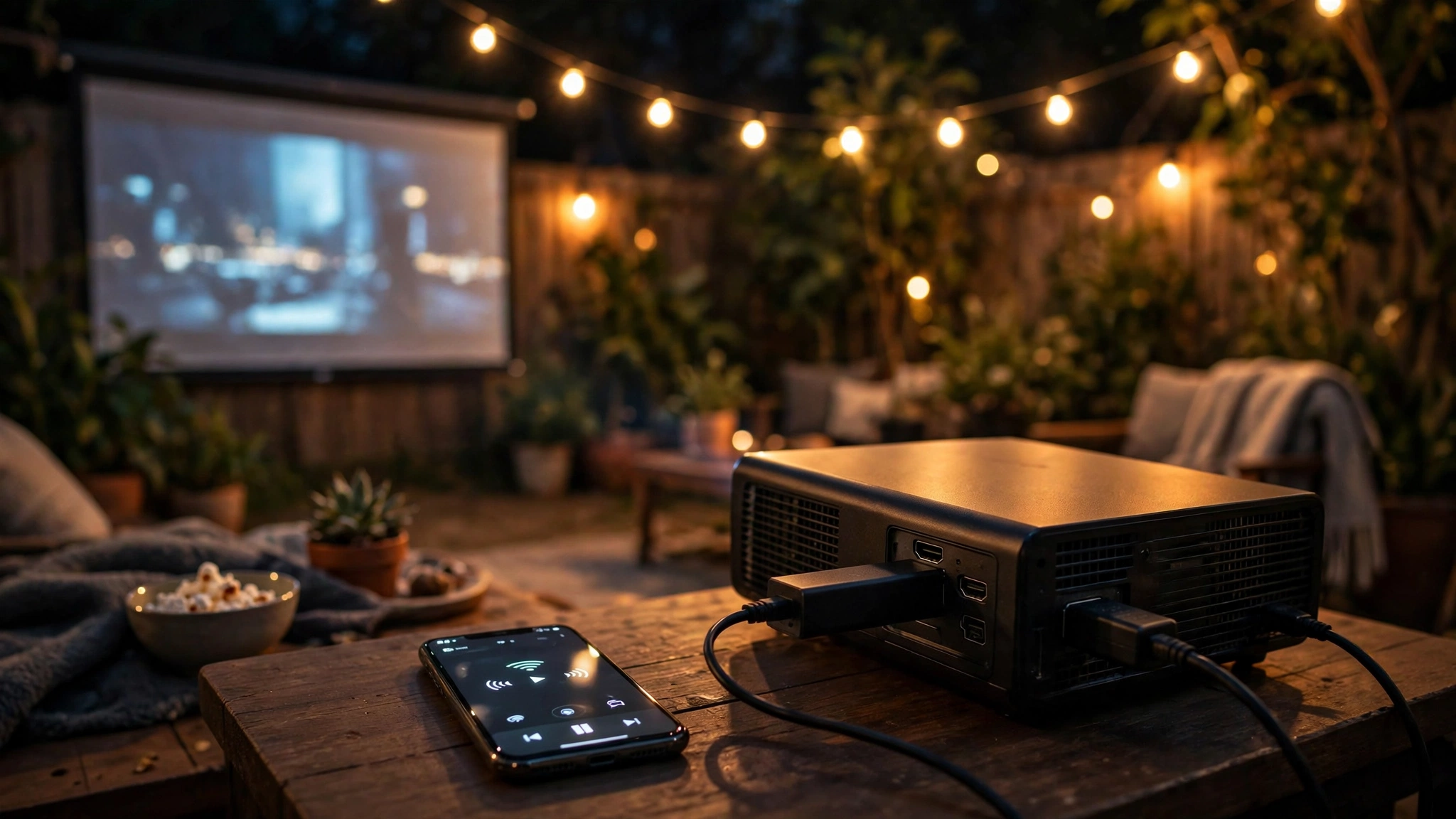
Here is the problem that ambushes more backyard movie nights than any other: everything connects, the projector shows your phone’s home screen perfectly, you press play on Netflix — and the screen goes black. You hear the audio and see the playback controls, but no picture.
The culprit is HDCP (High-bandwidth Digital Content Protection), the copy-protection handshake streaming services require. Every link in your chain — phone, adapter, cable, projector — must complete the HDCP handshake, or protected content like Netflix, Disney+, and Hulu refuses to display video. Your home screen isn’t protected, which is why it shows up fine while the movie doesn’t.
The most common trigger is a cheap, non-compliant HDMI adapter.
Fixes that actually work: use a certified adapter (Apple’s official Digital AV Adapter is HDCP-compliant; reputable USB-C brands advertise HDCP support explicitly — if the listing doesn’t mention it, assume it lacks it); cast natively instead of mirroring by tapping the Cast button inside the app rather than mirroring your whole screen; or use a streaming stick plugged into the projector, which runs apps natively with full HDCP compliance and sidesteps the problem entirely.
Test your exact movie, in your exact app, before guests arrive. Discovering the black screen at showtime with eight people on lawn chairs is a rite of passage you want to experience zero times.
Audio Tips: Don’t Let Weak Sound Ruin the Night
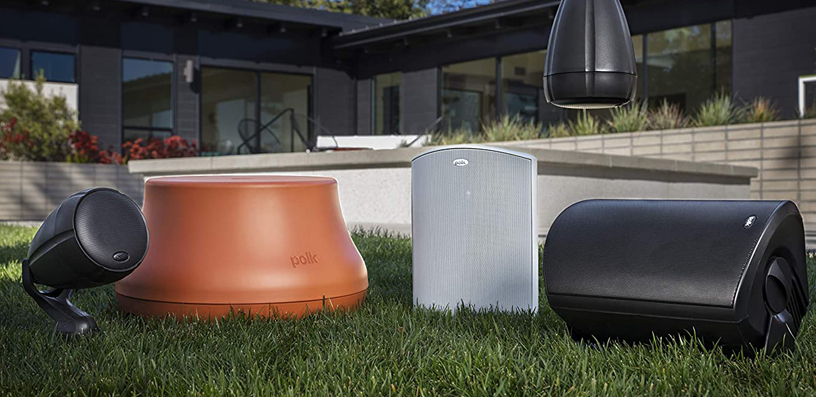
Here’s an uncomfortable truth: most projector speakers are an afterthought, and outdoors — with no walls to bounce sound off — they sound thin and distant even at full volume. Plan your audio separately.
The simplest upgrade: a Bluetooth speaker paired to your phone before you start mirroring. The phone sends video to the projector and audio to the speaker, and sync is usually close enough that lip-sync issues are unnoticeable. Place the speaker near the seating area, not next to the projector.
For the best sync: go wired. Run an aux cable from the projector’s 3.5mm audio-out to a powered speaker — effectively zero latency, so dialogue always matches lips. Choose this if Bluetooth delay bothers you.
Pair the speaker to the projector, not the phone, when using a streaming stick or built-in apps, since the phone isn’t in the audio chain. Note that some projector-to-speaker Bluetooth connections lag slightly — test with dialogue-heavy content first.
For bigger crowds, a PA-style speaker or soundbar makes a dramatic difference; we cover the full range of options in our guide to connecting speakers to an outdoor projector.
Set your volume before it gets fully dark. A quick sound check at conversation level, then nudge it up once the movie starts, keeps everyone — including the neighbors — happy.
Your 10-Minute Pre-Show Checklist
Power: projector plugged in or charged, phone on a charger, stick powered.
Connection: tested with the actual app and movie.
Picture: throw distance set, screen size matched to seating distance, keystone corrected, focus sharp.
Audio: speaker paired and volume-checked.
Phone: Do Not Disturb on, landscape, brightness up.
Light: wait for full dark if your projector is dim — even a little ambient light washes out the image.
Frequently Asked Questions
Can I connect my phone to a projector without Wi-Fi?
Yes. A wired USB-C to HDMI or Lightning to HDMI adapter needs no Wi-Fi at all, and Miracast creates a direct phone-to-projector connection. Just make sure your movie is downloaded for offline viewing first, since streaming apps still need internet.
Why does Netflix show a black screen when I mirror my phone?
That’s HDCP copy protection. Your adapter or cable isn’t completing the HDCP handshake that Netflix requires. Switch to a certified HDCP-compliant adapter, use the app’s built-in Cast button instead of full-screen mirroring, or run Netflix natively on a streaming stick plugged into the projector.
Can I use AirPlay with any projector?
No — the projector needs built-in AirPlay support or an Apple TV connected to it. Many newer smart portable projectors include AirPlay, but basic models don’t. Check your projector’s specs for “AirPlay” before counting on it.
Will mirroring drain my phone battery fast?
Yes, screen mirroring with full brightness is very battery-hungry. Always keep your phone on a charger or power bank during the movie, and use an adapter with pass-through charging if you’re going wired.
Is there audio delay when using a Bluetooth speaker with a projector?
Sometimes. Pairing the speaker to your phone usually stays in sync, but projector-to-speaker Bluetooth can lag slightly. If dialogue looks out of sync, switch to a wired aux connection from the projector to the speaker for zero latency.
Bottom Line
Connecting your phone to a projector for a backyard movie comes down to one choice: a wired HDMI adapter for maximum reliability, or a streaming stick plus your phone-as-remote for maximum convenience.
Either path works — what matters is testing your exact setup with your exact streaming app before showtime, keeping the phone charged, and giving the audio its own plan instead of relying on the projector’s built-in speaker.
Do that, and the technology disappears into the background where it belongs, leaving just the movie, the night air, and a very good evening.