How To Clean Projector Lens 2026 – DIY Projector Guide
A dusty projector lens is one of the most common reasons a sharp image slowly turns soft, hazy, or dim. The good news is that cleaning the lens is simple — if you do it the right way. The bad news is that doing it the wrong way can scratch the lens coating permanently, and no amount of cleaning will fix that.
This guide covers the safe way to clean your projector lens in 2026, what supplies you actually need, what to avoid, and when to stop and let a professional handle it.
Signs Your Projector Lens Needs Cleaning
Before you reach for a cloth, confirm the lens is actually the problem. A dirty lens typically shows up as:
- A soft or blurry image that does not sharpen after adjusting focus.
- Foggy or hazy patches in the projected image, especially visible on bright scenes.
- A dimmer-than-usual picture even with a healthy lamp or light source.
- Visible dust spots or smudges when you look at the lens under a light.
- Reduced contrast — blacks look gray, and colors look washed out.
One quick check: project a plain white image or a blank screen. If the haziness or spots appear in the same place no matter what you project, the lens (or the internal optics) is likely the culprit. If the problem moves or flickers, it may be a cable, source, or lamp issue instead.
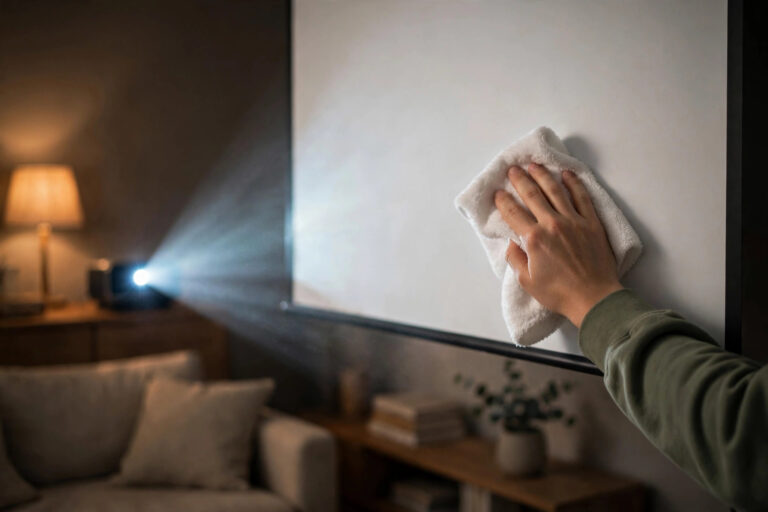
It is also worth remembering that a dirty screen can cause similar symptoms. If you have cleaned the lens and the image still looks off, the screen may need attention too — see our companion guide on how to clean a projector screen.
What NOT to Do (Read This First)
Most projector lens damage happens during cleaning, not from dust. Avoid these common mistakes:
- Do not use compressed air cans. The propellant comes out extremely cold and can crack coatings or push dust deeper into the projector. The blast is also far stronger than the lens assembly is designed for. A hand-squeezed rubber blower is the safe alternative.
- Do not touch the lens with bare fingers. Skin oil leaves residue that is harder to remove than dust, and wiping it away can smear it across the coating.
- Do not use household cleaners. Glass cleaner, all-purpose spray, dish soap, and alcohol-based wipes are too harsh for coated projector optics. They can strip anti-reflective coatings or leave a film.
- Do not use paper towels, tissues, or regular cloths. These feel soft to your hand but are abrasive at the microscopic level. They can leave fine scratches on the coating.
- Do not blow on the lens with your mouth. Your breath carries moisture and tiny particles that make the problem worse.
- Do not scrub. If a spot does not come off with gentle wiping, stop. Scrubbing is how coatings get scratched.
Supplies You Need
You do not need a fancy kit. Four basic items cover nearly every situation:
- Rubber hand blower (rocket blower). This is your primary tool. It delivers a gentle, controlled puff of air without chemicals or extreme cold.
- Microfiber cloth. Use a clean, lint-free microfiber cloth made for optics or camera lenses. Keep it in a sealed bag or case so it stays dust-free between uses. A dirty cloth will scratch.
- Lens cleaning solution. Only if needed. Use a solution specifically made for coated camera or projector lenses. Never apply it directly to the lens — always apply it to the cloth first.
- Lens brush (optional). A soft, retractable brush designed for camera lenses can sweep away loose dust before wiping. Make sure the bristles are clean and soft.
That is it. Skip the multi-piece cleaning kits with mystery liquids unless you have verified they are safe for coated optics.
How To Clean Projector Lens in 2026 – Step by Step
Cleaning the External Lens
Work in a clean, well-lit room. Wash and dry your hands first. Turn the projector off and let it cool completely — at least 30 minutes after use. A warm lens and a cold cloth can cause condensation.
- Power off and unplug. Let the projector cool down fully. If it has a lens cap or cover, remove it.
- Inspect the lens. Shine a flashlight at an angle across the lens surface. Look for dust, fingerprints, or smudges. Note where the dirt is so you can check your work afterward.
- Blow away loose dust. Hold the projector steady (or leave it mounted) and use the rubber blower to puff air across the lens from one side to the other. Use short, gentle squeezes. Do not let the blower nozzle touch the lens. This step alone removes most dust.
- Brush if needed. If a few stubborn particles remain, sweep them away with the soft lens brush using light, single-direction strokes. Do not press down.
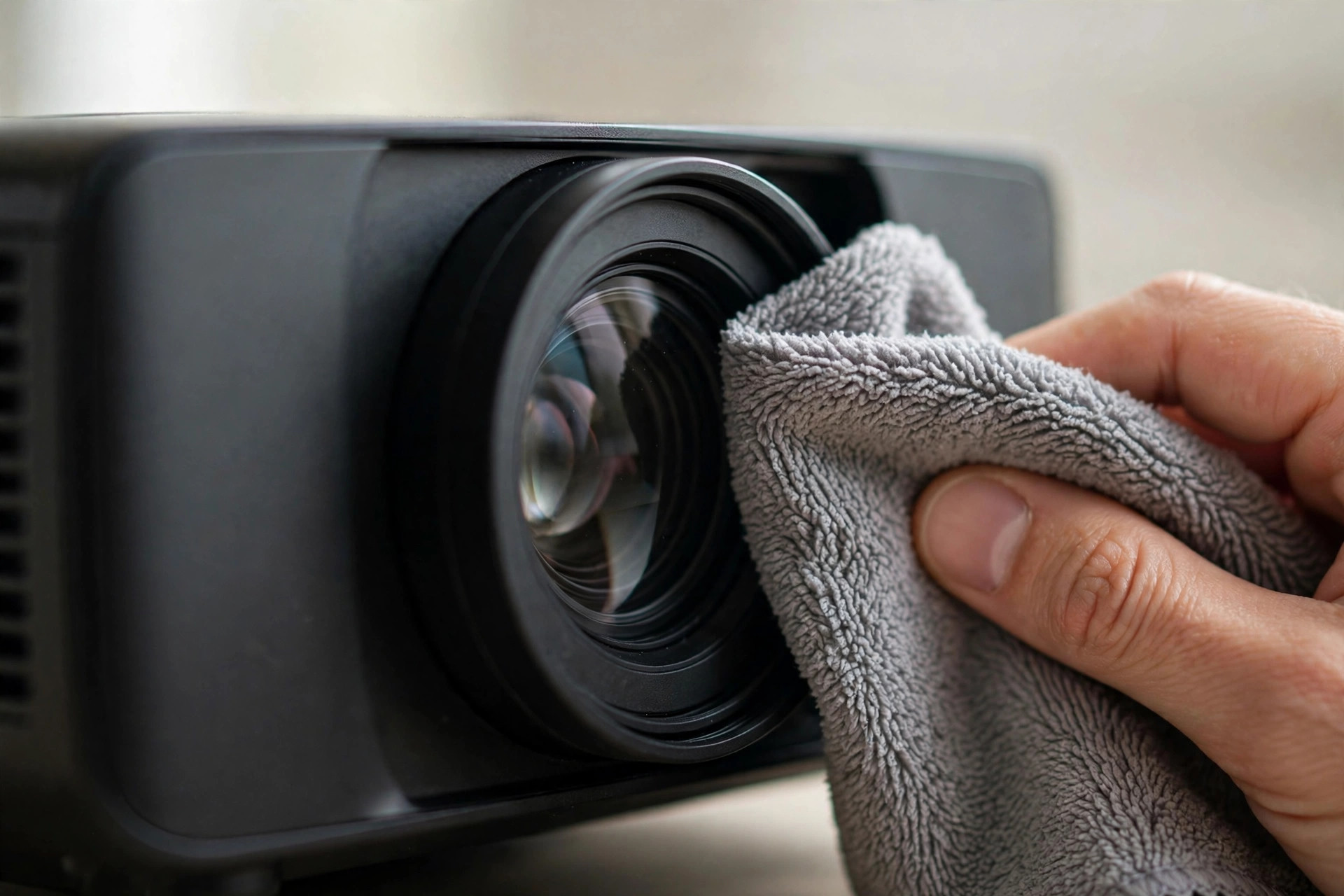
- Wipe with a dry microfiber cloth. Fold the cloth into a small pad. Using very light pressure, wipe in a slow circular motion starting from the center and spiraling outward. This pushes dust to the edge instead of dragging it across the coating. Lift the cloth and check your work.
- Use lens solution only if necessary. If you see fingerprints, smudges, or a greasy film that dry wiping did not remove, put one or two drops of lens solution on a clean section of the microfiber cloth — never on the lens itself. Wipe gently in the same center-outward spiral. Follow with a dry section of the cloth to remove any residue.
- Re-inspect and repeat if needed. Shine the flashlight again. If the lens looks clean and clear, you are done. If one spot persists, repeat steps 3 through 6 once. Do not keep scrubbing the same spot.
- Replace the lens cap. If your projector has one, put it back on to keep new dust off.
After cleaning, power the projector on and project a white test image. The picture should look noticeably sharper and brighter if dust was the problem.
Internal Lens Dust: When NOT to DIY
Sometimes dust gets inside the projector, past the outer lens, onto internal optics. You will know this is happening if the outer lens is clean, but you still see fixed spots, shadows, or a hazy patch in the image.
- Internal optics are extremely sensitive to fingerprints, static, and misalignment. One wrong touch can make things worse.
- Opening the case usually voids the warranty.
- Some projectors contain high-voltage components even when unplugged. The lamp housing and power supply can hold a charge.
- Reassembly mistakes — a loose ribbon cable, a misaligned panel, a forgotten screw — can cause new problems that are expensive to fix.
If you suspect internal dust, check whether the projector is still under warranty first. If it is, contact the manufacturer or an authorized service center. If it is out of warranty, take it to a reputable projector repair shop. Internal cleaning is a routine job for a technician and costs far less than replacing a damaged optical block.
One exception: some projectors have a user-accessible dust filter or a removable outer lens ring that the manual explicitly says you can clean. Follow the manual for your specific model, and only do what the manual describes.
Cleaning the Filter and Vents
A dirty air filter makes the lens dirty faster. When the filter is clogged, the fan works harder, airflow drops, and dust settles on optics instead of being trapped by the filter.
Check your filter every time you clean the lens:
- Locate the filter. Most projectors have a removable filter on the side or bottom. Check your manual for the exact location.
- Remove and inspect it. If it is dusty, tap it gently over a trash can or use the rubber blower to push dust out.
- Wash only if the manual says so. Some filters are washable; others are not. If washable, rinse with plain water, let it air-dry completely (at least 24 hours), and reinstall only when fully dry. Never reinstall a damp filter.
- Replace on schedule. Filters wear out. If yours looks torn, warped, or permanently gray, replace it. Check your manual for the recommended interval — it is often every 3 to 6 months depending on usage and environment.
While you are at it, wipe the exterior vents with a dry microfiber cloth to keep airflow clear. Do not push dust into the vents.
A clean filter also helps your lamp or light source last longer by keeping internal temperatures down. For more on lamp life and when to expect a replacement, see our guide on how long projector bulbs last.
How Often Should You Clean the Lens?
There is no single schedule that fits everyone. It depends on your environment:
- Clean living room or dedicated theater: every 2 to 3 months, or whenever you notice a change in image quality.
- Dusty room, workshop, or outdoor setup: every 2 to 4 weeks. Check more often in summer when windows are open.
- Ceiling-mounted projector: dust settles on upward-facing lenses faster. Check monthly.
- After any construction, renovation, or moving: clean immediately. Fine dust from drywall or wood gets everywhere.
Do not clean on a fixed schedule if the lens is already clean. Every wipe is a small risk to the coating. Clean when you see a reason to clean, not out of habit.
Preventing Dust Buildup
The best cleaning is the one you do not need. A few habits will keep your lens cleaner for longer:
- Use the lens cap. If your projector came with one, use it every time the projector is off. If it did not, a clean microfiber cloth draped over the lens works as a dust cover.
- Keep the projector in a clean room. Vacuum and dust the room regularly. A ceiling-mounted projector in a dusty room will collect grime faster than a shelf-mounted one in a clean room.
- Run an air purifier nearby. Even a small HEPA purifier in the projector room reduces airborne dust significantly.
- Do not smoke near the projector. Smoke residue coats optics and is much harder to remove than dust.
- Keep the filter clean. As covered above, a clogged filter pushes dust onto the lens.
- Store the projector covered when not in use for weeks. A breathable cover keeps dust off without trapping moisture.
These steps will not eliminate dust, but they will stretch the time between cleanings from weeks to months.
Frequently Asked Questions
Can I use Windex or glass cleaner on my projector lens?
No. Household glass cleaners contain ammonia and other chemicals that can damage the anti-reflective coating on projector lenses. Use only a solution made specifically for coated optics, and only when dry wiping is not enough.
Is it safe to use a vacuum cleaner near the projector lens?
No. A vacuum creates strong suction and static, and the nozzle can easily bump the lens. Use a hand-squeezed rubber blower for dust removal. Vacuums are fine for the room and the projector exterior, but keep them away from the lens itself.
Why does my image still look blurry after cleaning the lens?
Several things can cause blur beyond a dirty lens: the focus may need adjustment, the screen may be dirty or wrinkled, the source resolution may be lower than the projector’s native resolution, or the lamp may be aging and dim. Check focus first, then inspect the screen, then verify your source is outputting the correct resolution.
How do I know if the dust is on the lens or inside the projector?
Clean the outer lens carefully and check the image again. If the spots or haze are gone, it was the outer lens. If the same spots remain in the same place, the dust is likely on internal optics. In that case, do not open the projector yourself — take it to an authorized service center, especially if it is still under warranty.
The Bottom Line
A clean lens is the cheapest picture upgrade you can get. Stick to the gentle order — air first, dry microfiber second, lens solution only when needed — and never use household cleaners, compressed air, or paper towels on coated optics. Keep the filter clean too, and pair lens care with a clean screen: see our guide on how to clean a projector screen.